Extension management
Overview
Extensions allow tenant administrators to expand the capabilities of Rapidminer® AI Cloud software by uploading custom operator packages. Once uploaded and verified, extensions become available to workspace users in Workflow Studio, where they appear as additional operators in the operator panel under E. Extensions are scoped to the tenant — any extension you upload is available to all users within your tenant.
Required role: Tenant Administrator
The Extensions List
From the left sidebar, navigate to Operations > Extensions to open the Extension Management page.
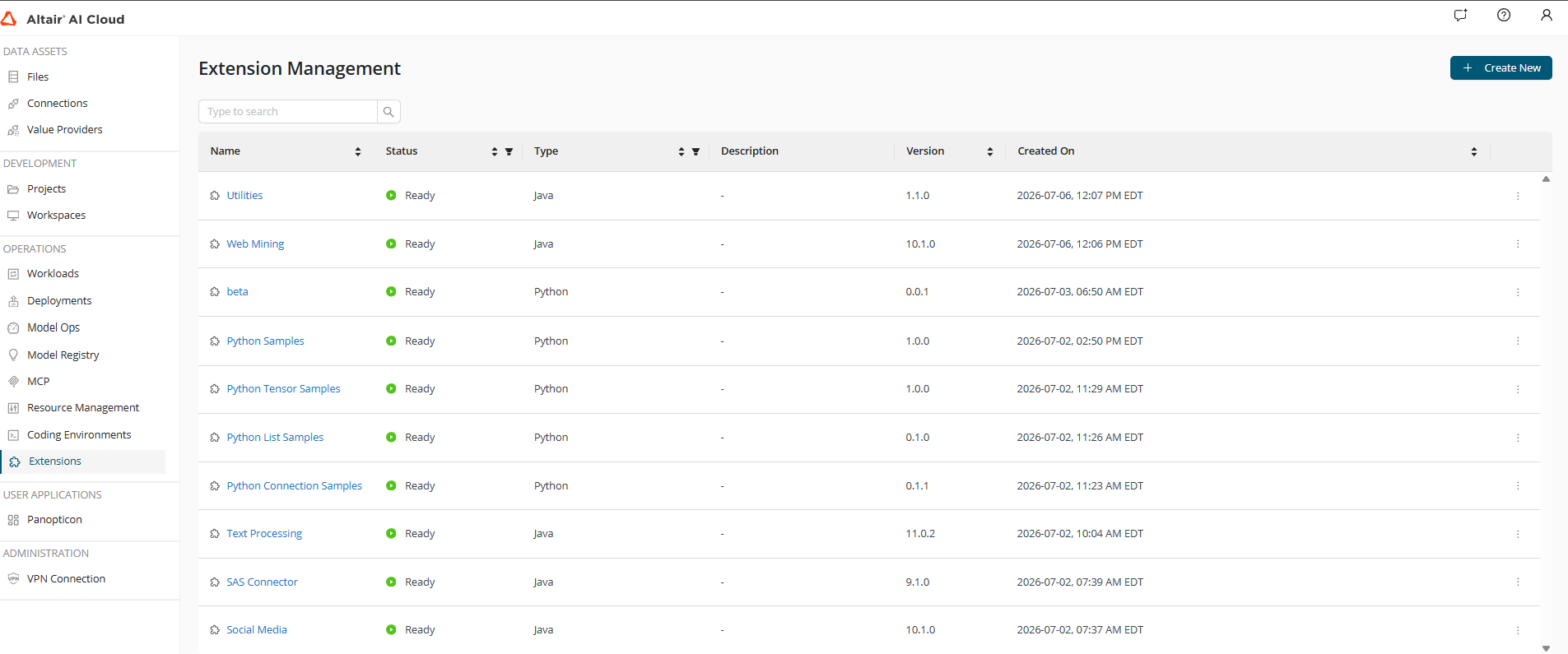
The list displays all extensions currently uploaded to your tenant, with the following columns:
| Column | Description |
|---|---|
| Name | Display name of the extension |
| Status | Current state — Ready (green) means the extension is verified and active |
| Type | Package type: Java or Python |
| Description | Optional description entered at upload time |
| Version | Version number extracted from the package |
| Created On | Date and time the extension was uploaded |
Use the search bar at the top to filter extensions by name.
Uploading an Extension
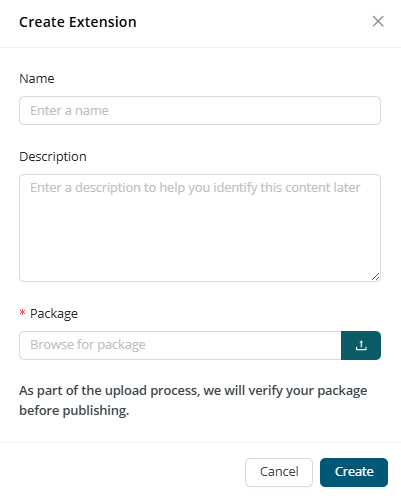
- Click + Create New in the top-right corner.
- In the Create Extension dialog, fill in the following fields:
| Field | Required | Description |
|---|---|---|
| Name | No | A human-readable label for the extension. If left blank, the name is taken from the package. |
| Description | No | A short description to help identify the extension later. |
| Package | Yes | The extension package file to upload. Click the upload icon or type the file path to browse. |
- Click Create.
Rapidminer AI Cloud automatically verifies the package during the upload process. Once verification completes successfully, the extension status changes to Ready and it becomes available in Workflow Studio. If verification fails, the extension status will reflect the error — delete the failed entry, fix the package, and upload again. Do not close the dialog while the upload is in progress.
Extension Types
Rapidminer AI Cloud supports two types of extension packages: Java extensions and Python extensions.
Java extensions
Java extensions are packaged as .jar files . They are the traditional format for distributing custom operators and are suitable for high-performance, stateless data transformations.
Python extensions
Python extensions package Python-SDK built operators and must be uploaded as a .zip file. When a Python extension is uploaded, Rapidminer AI Cloud automatically provisions a linked Coding Environment to manage the Python runtime and dependencies. The coding environment is shown on the extension Details page and can be inspected for troubleshooting.
Extension Dependencies
Extensions can depend on other extensions of the same type — Python extensions may depend on other Python extensions, and Java extensions may depend on other Java extensions. When an extension with unresolved dependencies is uploaded, Rapidminer AI Cloud will notify you which required extensions are missing. You must upload the missing dependencies before the dependent extension can reach Ready status and become available in Workflow Studio.
Viewing Extension Details
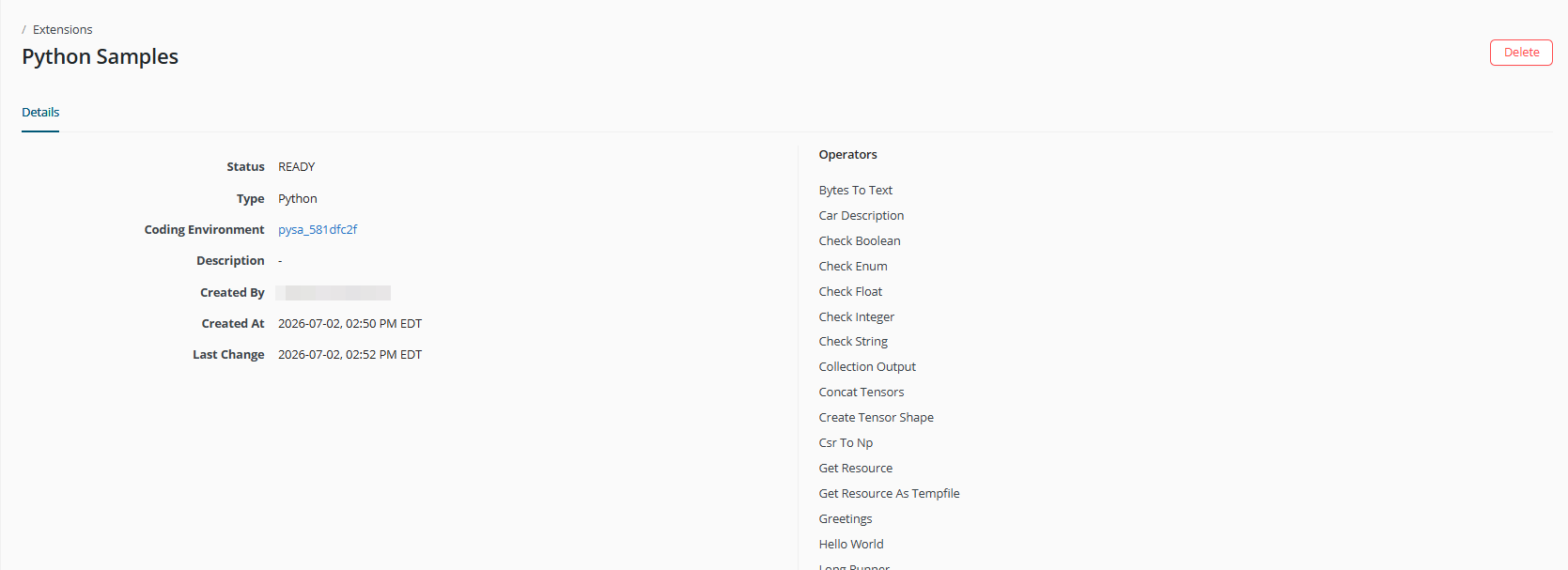
Click the name of any extension in the list to open its Details page.
 )
)
The Details page shows:
- Status — whether the extension is ready for use
- Type — Java or Python
- Coding Environment — (Python extensions only) the automatically provisioned environment linked to this extension
- Description — description entered at upload time
- Created By — the user who uploaded the extension
- Created At / Last Change — timestamps
The Operators panel on the right lists all individual operators that the extension contributes. These are the operator names that workspace users will see in Workflow Studio.
Deleting an Extension
- Open the extension Details page by clicking its name.
- Click Delete in the top-right corner.
- Confirm the deletion.
- Deleting an extension removes it from Workflow Studio immediately.
- Any existing workflows that use operators from the deleted extension will fail to execute until the extension is restored or those operators are replaced.
- For Python extensions, the associated Coding Environment is also permanently deleted.
- If other extensions depend on the extension you are deleting, those dependent extensions will also stop working.
Using Extensions in Workflow Studio
Extensions do not require any additional configuration by the user — once an extension status is Ready, its operators are automatically available in Workflow Studio for all users in the tenant.
To use an extension operator in Workflow Studio:
- Open a workflow in Workflow Studio.
- In the Operators panel, search for the operator by name (e.g., Bytes To Text, Web Mining).
- Drag the operator onto the workflow canvas and connect it as needed.
- Configure the operator parameters in the Properties panel on the right.
Frequently Asked Questions
What file format should I use when uploading an extension?
- Java extensions must be packaged as a .jar file.
- Python extensions must be packaged as a .zip file.
What happens if verification fails after I upload a package?
The extension will not reach Ready status and will not appear in Workflow Studio. Delete the failed entry, correct the issue in your package, and upload again.
Can I update an extension without deleting it first?
No. Rapidminer AI Cloud does not currently support in-place versioning. To update an extension, delete the existing entry and upload the new version as a new extension. Be aware that any workflows using operators from the old extension will stop working between the delete and the re-upload.
What happens to the Coding Environment when I delete a Python extension?
The linked Coding Environment is permanently deleted along with the extension.
Are extensions available to all users in the tenant?
Yes. Extensions are tenant-wide — once an extension reaches Ready status, all workspace users within the tenant can access its operators in Workflow Studio. There are no workspace-level restrictions.