Resource pool alerts
Resource pool alerts notify you by email when a resource pool is running out of capacity. Instead of finding out from users whose workloads fail with "quota exceeded" errors, you hear about it first and can act in time: stop workloads that are no longer needed, move projects to another pool, or add resources.
With resource pool alerts you can:
- set a usage threshold for CPU, memory and GPU, separately for each resource pool
- choose who receives the alert emails
- see all alerts in one place: whether they are on, when they last fired and how often Alerts are off by default for every resource pool. You turn them on per pool.
Before you begin
Alert emails are sent through an SMTP connection. Make sure an SMTP connection exists and is selected in the alert settings. See Choose the email server.
Configure an alert for a resource pool
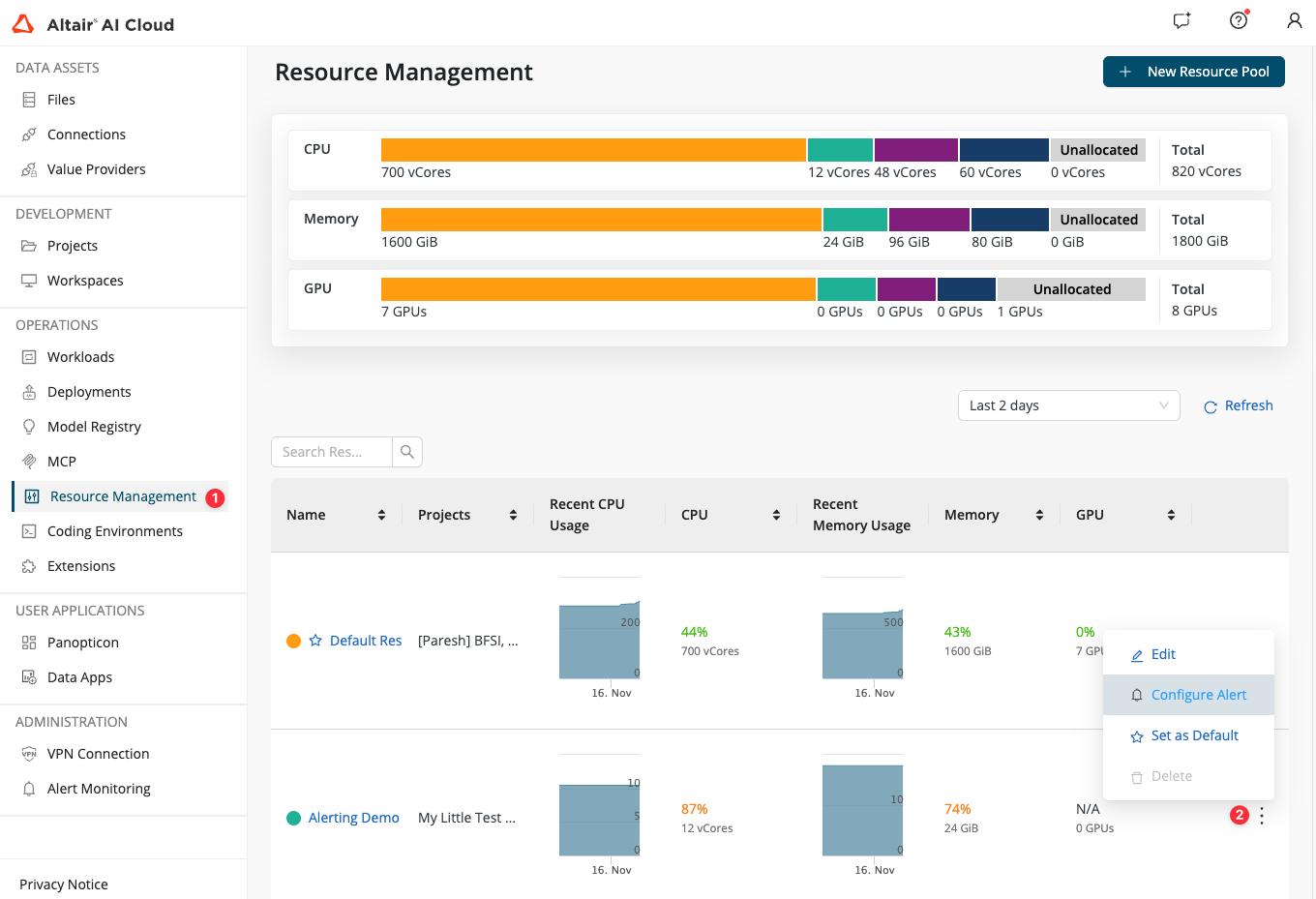
- From the left hand menu, open Operations > Resource Management.
- In the list of resource pools, click the ⋮ (more actions) icon in the row of the pool you want to monitor, and select Configure Alert.
- Switch on Enable Alert.
- Under Resources, switch on each resource you want to monitor (CPU, Memory, GPU) and enter its threshold in percent. You get an alert when the pool's usage of that resource goes above the threshold.
- Under Email Recipient(s), type an email address and press Enter. Repeat for every recipient. An address is only added once you press Enter.
- Click Save. The alert is active from now on, and it appears on the Alert Monitoring page.
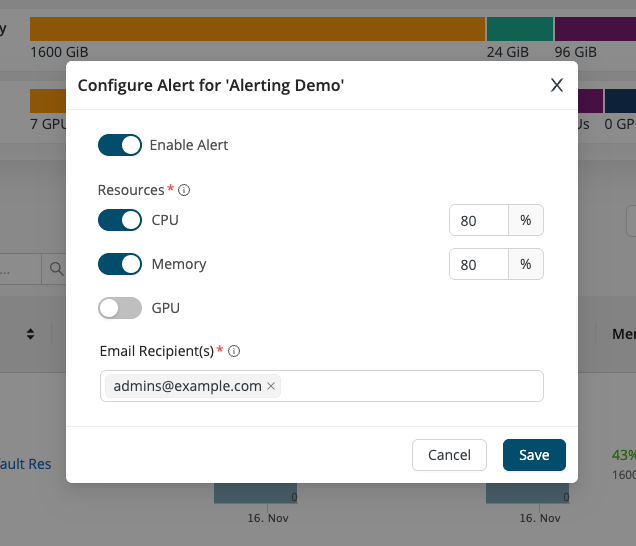
Pick a threshold that leaves you time to react, for example 80%. If the threshold is too close to 100%, users may already hit quota limits by the time the email arrives.
What the alert email looks like
When a threshold is crossed, every recipient receives an email with a subject like [ALERT] High CPU Usage Alert for Resource Pool. The email contains:
- Resource Pool Name: the pool that crossed its threshold
- Utilization percentage: the pool's current usage of the resource
- Resource Type: CPU, memory or GPU
- Tenant: the tenant the pool belongs to It also recommends investigating the workloads running in the resource pool.
When alert emails are sent
- When the threshold is crossed: recipients get an alert email.
- While usage stays above the threshold: recipients get a reminder every 12 hours, until usage drops below the threshold.
- When usage gets back to normal: no email is sent. To check whether the situation is resolved, look at the pool's usage on the Resource Management page. Email is currently the only way alerts are delivered.
Monitor your alerts
From the left hand menu, open Administration > Alert Monitoring. The page lists every resource pool that has an alert configured:
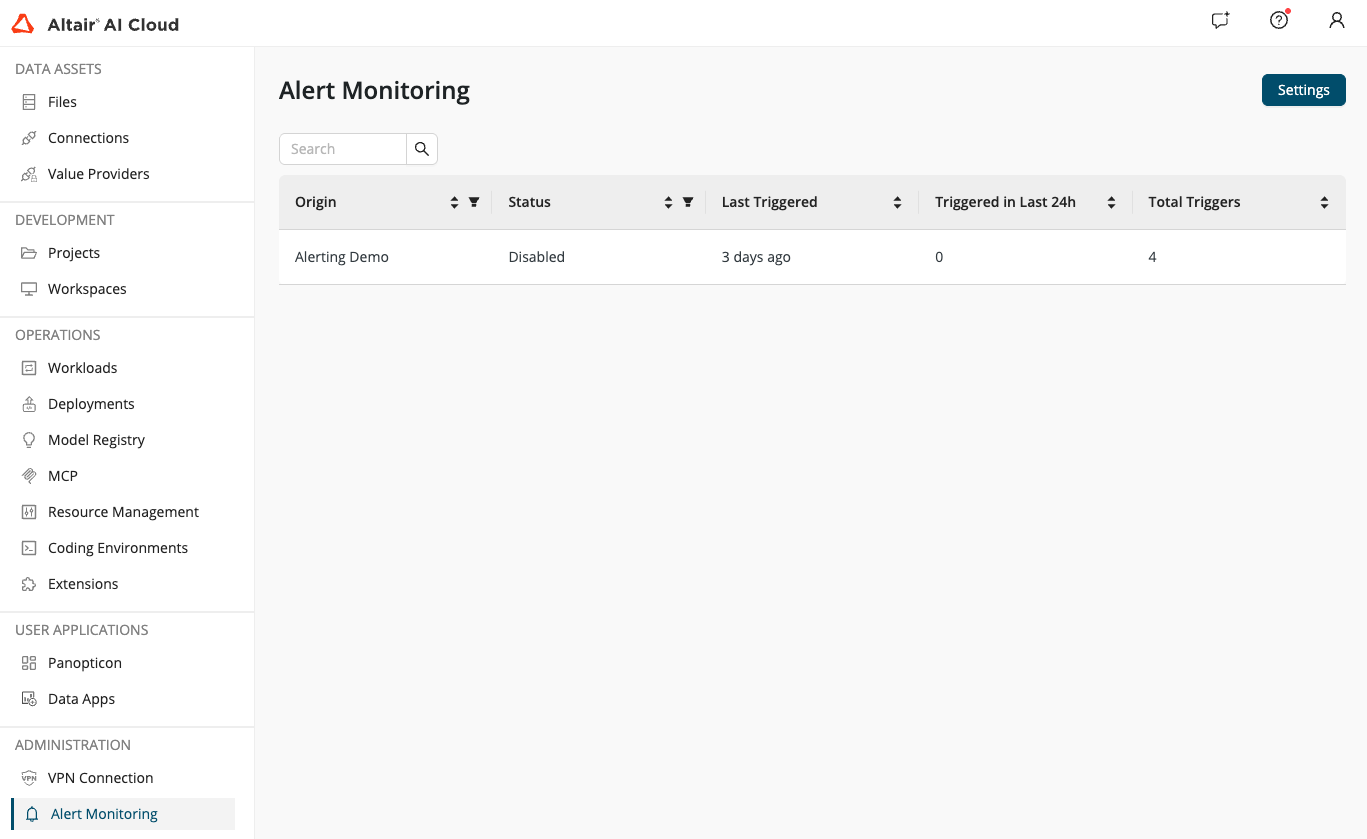
| Column | Shows |
|---|---|
| Origin | The resource pool the alert belongs to |
| Status | Whether the alert is enabled |
| Last Triggered | When the alert last fired |
| Triggered in Last 24h | How many times it fired in the last 24 hours |
| Total Triggers | How many times it fired since it was created |
The trigger counts are historical. Turning an alert off or changing its settings does not reset them.
Choose the email server
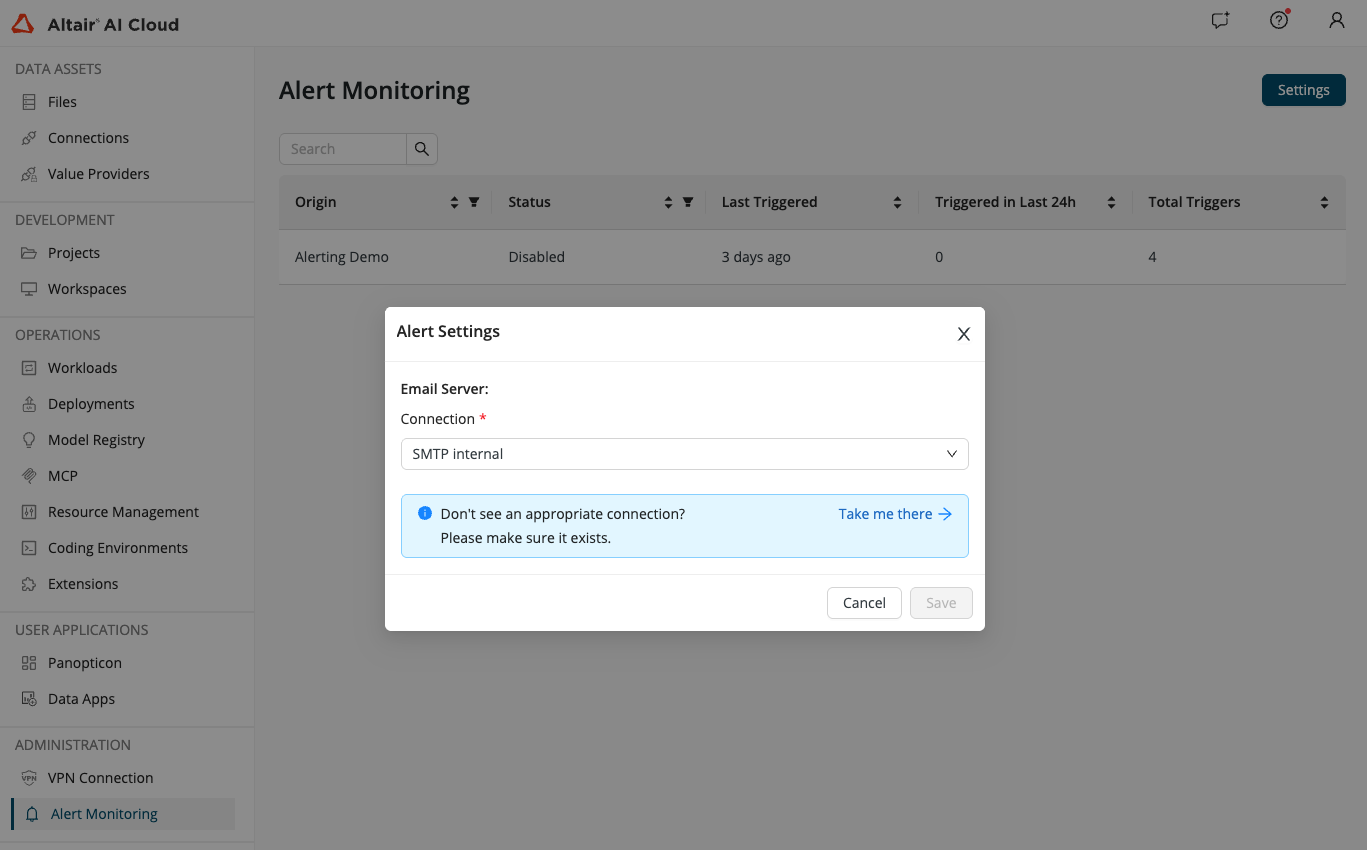
- Open Administration > Alert Monitoring.
- Click Settings.
- Under Connection, select the SMTP connection to send alert emails with.
- Click Save. The list shows the SMTP connections that are available to you. If the connection you need is not listed, click Take me there to go to Connections and create it.
See the SMTP connection page if you need help with setting up an SMTP connection
Turn off an alert
- Open Operations > Resource Management.
- Click the ⋮ icon in the pool's row and select Configure Alert.
- Switch off Enable Alert and click Save. The thresholds and recipients are kept, so you can turn the alert back on later without entering them again. To stop monitoring only one resource, switch off that resource under Resources instead.